

Papago is most useful in Korea when you treat it as a set of small tools rather than one automatic translator. A menu, a handwritten note, a spoken question, and a longer conversation each work better with a different mode.
This guide explains what to prepare, which Papago function to open, how to make your request easier to translate, and what to do when the result is unclear.
At a glance: which Papago mode should you use?
| Situation in Korea | Best Papago mode | What to do |
|---|---|---|
| Reading a menu, product label, or sign | Image translation | Point the camera at the Korean text and check the translated result. |
| Asking a short question | Text or voice translation | Type a short sentence or speak clearly into the microphone. |
| Speaking with a shop assistant or hotel staff member | Conversation translation | Select both languages and take turns using the correct microphone area. |
| No mobile data or Wi-Fi | Offline translation | Download the Korean language pack in advance. Use text or supported voice translation only. |
| Checking the meaning of one Korean word | Text translation or dictionary result | Enter the word separately instead of translating a long sentence. |
Conversation translation is available in the mobile app, while the web version is mainly useful for text translation. Papago’s official help pages also list image, voice, website, document, and conversation functions, with some features limited to the app or particular platforms.

Before you arrive: prepare Papago properly
1. Install the official app
Download Papago from your phone’s official app store and open it once before your trip. Allow microphone access if you plan to use voice or conversation translation, and allow camera access if you want to translate menus, signs, or packaging.
2. Set your language pair
On the Papago home screen, select Korean and your own language in the language settings area. For an English-speaking traveler, this usually means Korean-English. Check the direction before translating: Korean to English when reading or listening, and English to Korean when preparing something to show or say.
3. Download offline translation
Download the Korean offline language pack while you still have a dependable internet connection. Papago’s official help information says offline translation supports text translation and supported voice translation, but not image translation, conversation translation, website translation, or document translation. If you use Android, voice translation may require an additional voice language pack.
Offline support is not a replacement for the full app. It is mainly a backup for short phrases when your connection is unavailable.
4. Check the audio and camera permissions
Open the voice mode briefly and test that your phone can hear you. Then open image translation and confirm that the camera focuses. This is preparation, not a test of translation quality: the main goal is to avoid searching through phone settings at a busy counter.
How to use Papago for Korean menus, signs, and labels
Use image translation when the Korean text is already in front of you. It is useful for restaurant menus, convenience-store packaging, skincare instructions, warning notices, and short signs.
- Open Papago and choose image translation.
- Point the camera at the Korean text, keeping the phone reasonably steady.
- Take a photo or select an existing image, depending on the version of the app.
- Review the translated sections rather than assuming every word has been identified correctly.
- Tap or copy an important result if you need to show it to someone else.
For a menu, first translate the item name and then check the description separately. Korean menus may include abbreviated ingredients, cooking styles, or side dishes that do not translate neatly as one long block.
For a product label, image translation can help you understand the general purpose, but do not rely on an automatic translation alone for allergies, medication instructions, or safety-critical information. Ask staff or use a second reliable source when the consequence of misunderstanding is serious.
How to use text translation for short, practical requests
Text translation is often the easiest option when you already know what you want to communicate. Type a short, complete sentence and show the Korean result to the other person.
Short sentences usually work better than a paragraph. Include the important detail, such as the destination, quantity, time, or restriction.
- “I have a shellfish allergy. Does this contain shellfish?”
- “Can I pay by card?”
- “Please do not make it spicy.”
- “I am looking for this address.”
- “Is this the correct platform?”
When translating into Korean, avoid adding several unrelated requests at once. Translate one sentence, show it, wait for the answer, and then continue. This makes it easier for both sides to identify which part needs clarification.
How to use voice translation
Voice translation is useful when you need a quick spoken exchange but do not need a full two-way conversation screen. Select the language pair, tap the microphone, and speak after the app is ready.
Speak in a normal but controlled voice. Use one sentence at a time, avoid background noise where possible, and do not speak while another person is talking. If the environment is noisy or the sentence is long, Papago’s help guidance recommends pressing and holding the microphone for push-to-talk use.
After Papago displays the result, check the text before acting on it. If the translation sounds unexpected, type the sentence instead or simplify it into separate phrases.
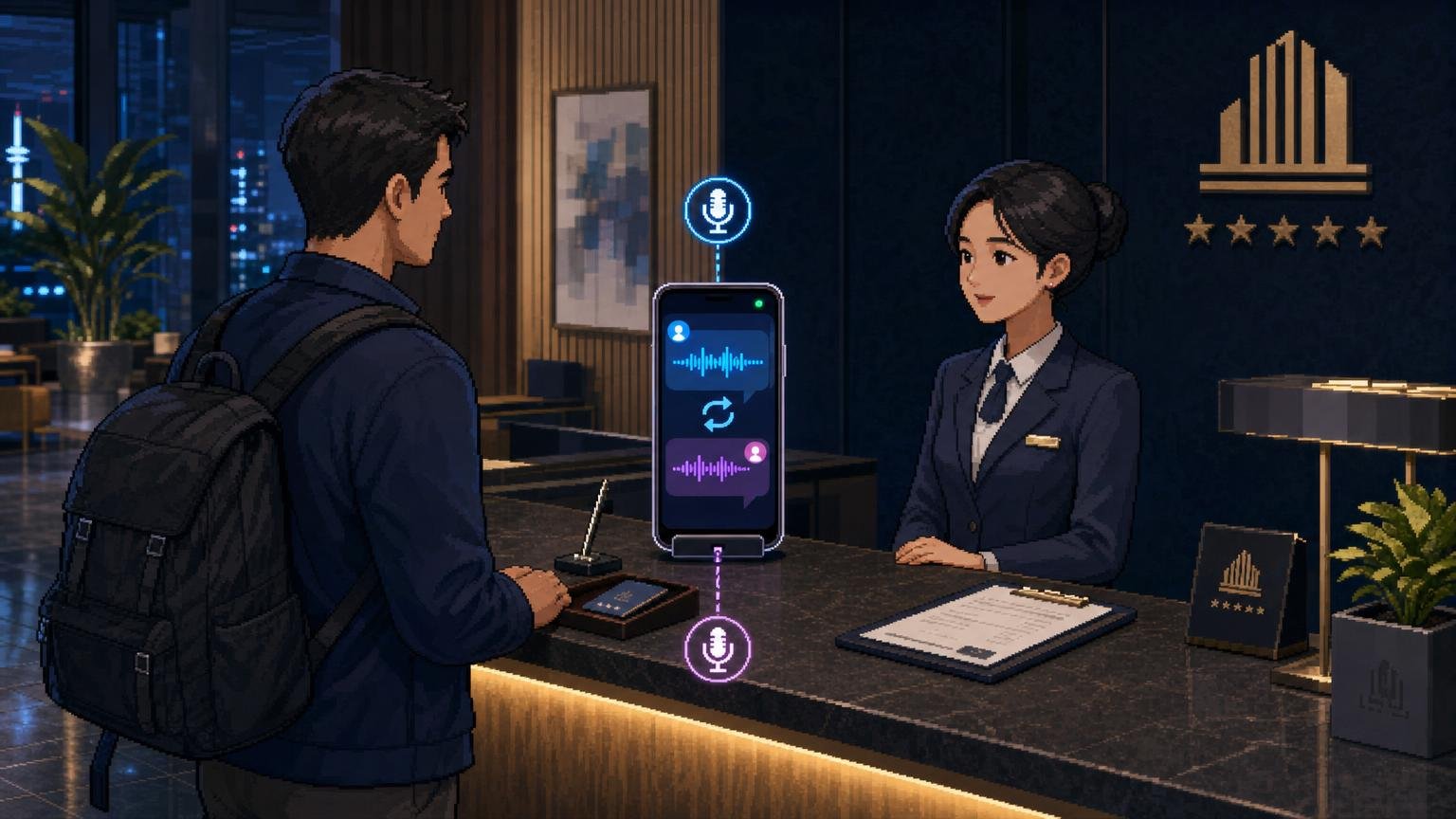
How to use conversation translation with another person
Use conversation translation when you and another person need to take turns speaking. This is the most useful Papago mode for a longer exchange with hotel staff, a shop assistant, a clinic reception desk, or a restaurant employee.
- Open the Papago mobile app.
- Select your language and the other person’s language.
- Open the conversation translation function.
- Tap the microphone in your language section and speak your sentence.
- Let Papago display and, if enabled, read the translation aloud.
- Ask the other person to use the microphone in their language section.
- Tap a previous result if you need to hear it again.
Conversation translation is designed for turn-taking, not for two people speaking at the same time. Keep the phone between you, make the language sections clear to both people, and pause long enough for the app to finish recognizing each sentence.
Papago’s current help information says that conversation history may appear as speech bubbles during the exchange. If you need to keep a result, use the app’s available favorite or history function; otherwise, do not assume that a temporary conversation will remain available after you leave the screen.
How to make Papago understand Korean situations better
Use names and places exactly when possible
For an address, hotel name, or business name, copy the original Korean spelling if it is available. Romanized names can be pronounced in several ways, while the Korean text gives the other person a clearer reference.
Separate the important detail
Instead of translating “I need to get to my hotel near the station but I am not sure if this bus goes there,” split it into two questions. For example: “Does this bus go to this station?” followed by “My hotel is near the station.”
Show the Korean result, not only the English result
When asking for help, turn the phone around so the other person can read the Korean output. If the answer is spoken quickly, use voice or conversation translation to bring it back into your language.
Keep a typed backup phrase
For recurring needs, save a short phrase in your notes app as well as Papago. This is useful if the app is not open, your battery is low, or the connection is poor.
Common problems and practical fixes
Papago gives a strange translation
Shorten the sentence, remove unnecessary detail, and translate again. Try text instead of voice, especially in a noisy place. If the result concerns food allergies, medication, payment, or an important instruction, ask a person to confirm it rather than relying on one automatic result.
The camera cannot read the sign
Move closer, improve the lighting, hold the phone parallel to the text, and avoid reflections. If the text is handwritten, stylized, very small, or partly covered, type the visible words manually.
The other person does not understand the Korean audio
Show the written Korean result on the screen. You can also replay the result or use a simpler sentence. Names, addresses, and numbers are often clearer when displayed as text.
There is no internet connection
Use the offline language pack for supported text translation and supported voice translation. Image, conversation, website, and document translation require functions that are not available in Papago’s offline mode, according to the official help information.
I cannot find conversation translation on the website
Conversation translation is a mobile-app feature. Use the Papago app rather than assuming that every function on the mobile website or desktop website has the same layout.
FAQ
Do I need a Korean phone number to use Papago?
This guide does not assume that you have a Korean phone number. Papago’s core translation functions are accessed through the app or web service, but sign-in, permissions, operating-system settings, and some optional features may vary by device and app version.
Can Papago translate a Korean restaurant menu?
Yes, use image translation in the mobile app. For important ingredients or allergies, confirm the result with restaurant staff because automatic image recognition and translation can miss context.
Can I use Papago without mobile data?
Yes, but only after downloading the relevant offline language pack. Offline support is limited compared with the connected app and does not include image, conversation, website, or document translation.
Is conversation translation available on a laptop?
Papago’s official help information identifies conversation translation as a mobile-app feature. The web version is better suited to text translation.
Should I speak English into voice translation or type it?
Use voice for a short, clear sentence in a quiet environment. Type the sentence when the place is noisy, the wording is important, or you want to review the Korean output before showing it.
Can Papago replace a human interpreter?
No. It can help with ordinary travel communication, but important medical, legal, immigration, safety, and allergy-related communication may require a qualified human interpreter or direct confirmation from the responsible organization.