
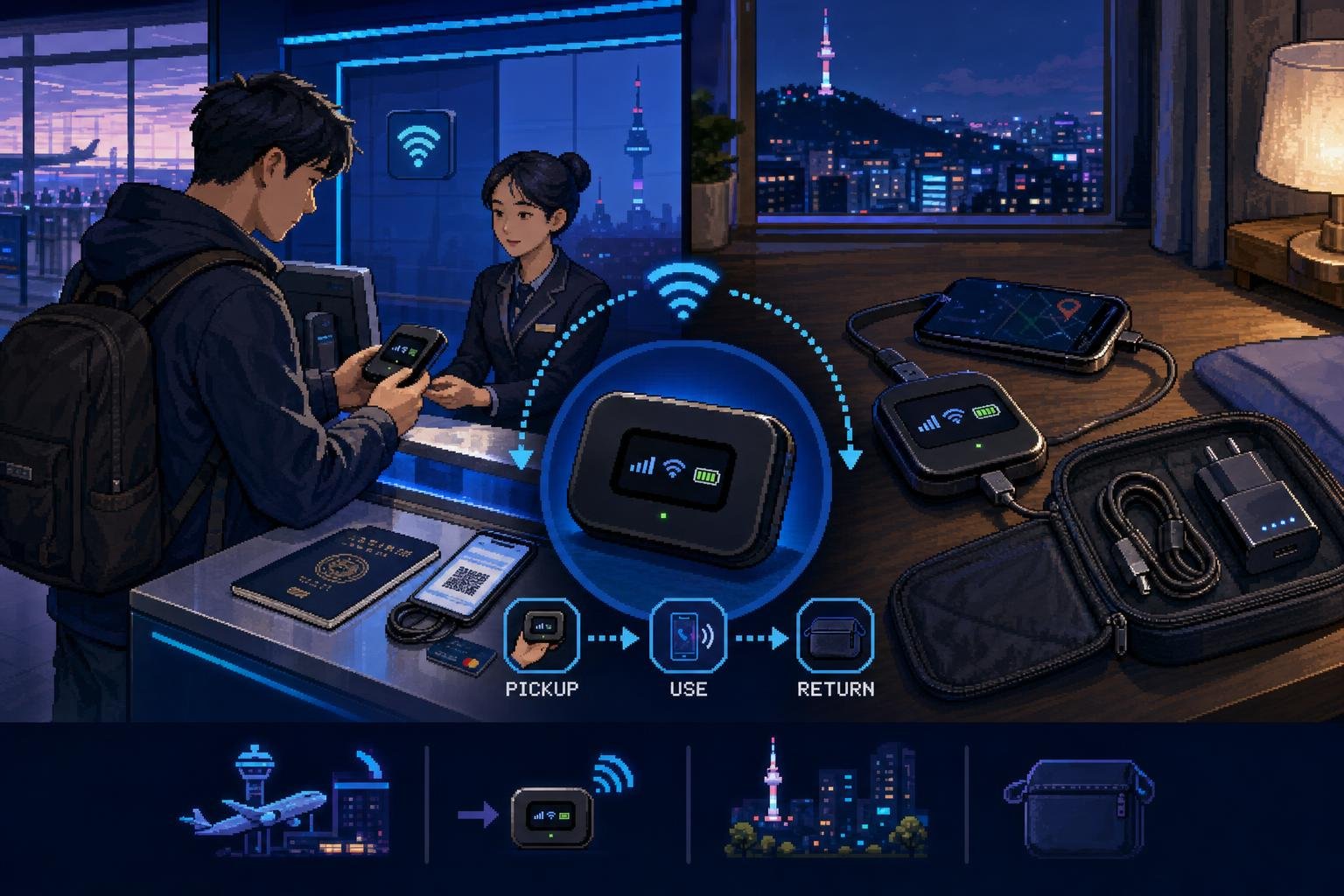
A pocket Wi-Fi rental is useful when two or more travelers need internet access on several phones, tablets, or laptops without changing SIM cards. The trade-off is that everyone must stay reasonably close to the Wi-Fi device, and the device itself needs charging.
For a foreign traveler, the most important part is not choosing a brand. It is matching the pickup and return plan to your flight, carrying the correct documents, and understanding what “unlimited” data means for the specific product.
At a glance: what to prepare
| Before pickup | At the airport counter | Before returning |
|---|---|---|
| Passport, reservation details, and an eligible payment card | Confirm the rental period, Wi-Fi name, password, charger, and any deposit | Return the router, charger, cable, and other included items at the correct counter |
| Check your arrival terminal and counter hours | Connect one phone and test a webpage | Allow extra time before check-in and keep the return receipt or confirmation |
Several Korean telecom operators sell pocket Wi-Fi rentals to foreign visitors. For example, SK Telecom currently lists its T Wi-Fi Router for foreign visitors at a standard daily price of KRW 4,400, with an online booking price shown as KRW 3,300 per day on its English site. LG U+ currently displays KRW 4,400 for one day on its pocket Wi-Fi reservation page. These are provider-specific prices, not a universal Korea-wide rate.
Data policies also differ. SK Telecom describes its T Wi-Fi Router as unlimited data with continued use at up to 20 Mbps. LG U+ describes a daily 4 GB allowance followed by continued use at up to 5 Mbps. Read the product description for the exact device you reserve rather than assuming every “unlimited” plan works at full speed all day.
1. Choose a provider and reserve the correct product
Search for the provider’s pocket Wi-Fi, Wi-Fi router, or T Wi-Fi Router product. Do not accidentally reserve a data SIM, eSIM, or mobile-phone rental.
Step 1: Enter your travel dates
Use the date and time requested by the provider. Some services calculate by rental day, while others may count a 24-hour period or begin billing when the device is activated. Check whether the last rental day includes your return date.
Step 2: Select the pickup location
Choose the airport and terminal where you will actually arrive. Incheon International Airport has Terminal 1 and Terminal 2, and a counter in the wrong terminal may not be convenient to reach after immigration.
LG U+ lists pocket Wi-Fi pickup at Incheon Airport Terminal 1, Incheon Airport Terminal 2, Gimpo International Airport, and Gimhae International Airport. Its English product page also shows counter locations and hours, including some Incheon counters that operate 24 hours and others with limited daytime hours.
Step 3: Select the return location
If you will leave Korea from a different airport, check the provider’s return rules before paying. LG U+ states that its device can be returned at an LG U+ customer center at Incheon, Gimpo, or Gimhae Airport, even if it was picked up at a different one. This is not a rule you should assume applies to every provider.
2. What foreigners usually need at pickup
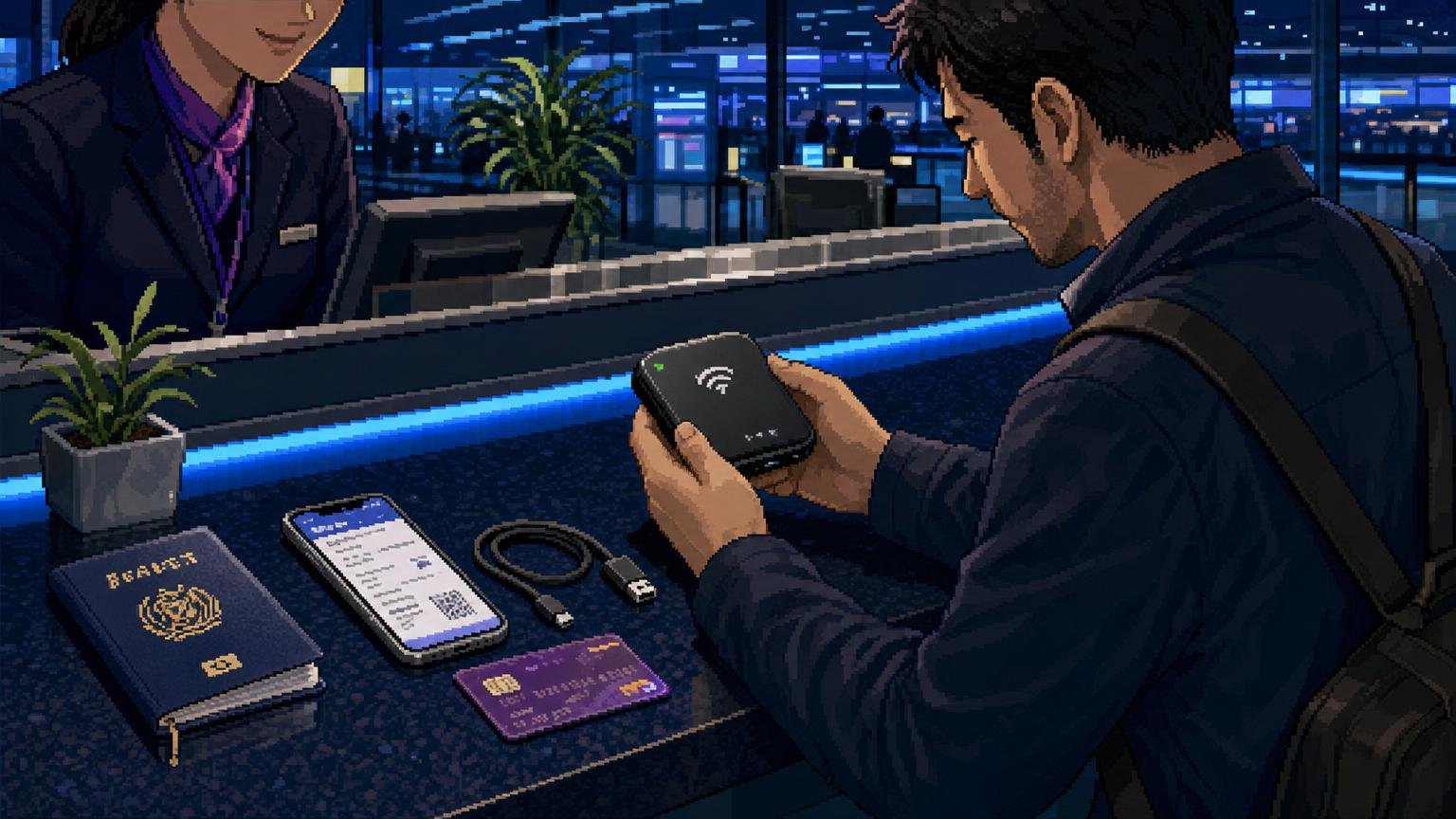
Bring the physical passport used for the reservation. The name on the reservation and payment card may need to match the passport, especially when the card is being used for a deposit or authorization.
LG U+ states that on-site rental requires a passport and a credit card in the same name as the passport. Its current English information says a credit card may receive a KRW 1,111 authorization without an actual charge, while a debit card may require a KRW 70,000 deposit that is automatically refunded after the device is returned successfully. These are LG U+ conditions and may not apply to another company.
Bring a physical card even if you booked online. A reservation confirmation does not necessarily replace the card or deposit check at the counter. If your travel companion made the reservation, confirm in advance whether that person must be present with their passport and card.
3. The airport pickup process
- Go through immigration and collect your luggage.
- Find the roaming or telecom customer center in the arrivals hall. Follow the provider name shown in your reservation rather than choosing the first counter you see.
- Show your passport and reservation confirmation. Complete any payment authorization or deposit process.
- Check that the router, battery, charging cable, power adapter, and any case or extra item listed on the rental agreement are included.
- Turn on the router and connect at least one phone before leaving the counter.
- Save or photograph the Wi-Fi name, password, contract number, and return instructions.
LG U+ says that same-day rental without an advance reservation may be available at its airport customer centers, but it recommends booking ahead. Walk-in availability can depend on stock, arrival time, terminal, and current demand, so a reservation is safer for late arrivals, large groups, or peak travel periods.
4. How to connect and use the WiFi Egg
Turn on the device, open your phone’s Wi-Fi settings, and select the network name shown on the router’s screen or label. Enter the password exactly as provided. Once connected, open a webpage or messaging app before leaving the airport.
Keep the router in a location where the signal can reach everyone. A backpack pocket may block the signal or make the device easy to forget. For a group, agree on who carries it and keep it in an accessible place rather than leaving it inside checked luggage.
If the connection is slow, first check the router’s signal and battery level. Some devices allow you to change between 2.4 GHz and 5 GHz Wi-Fi bands. LG U+ advises trying the 5 GHz band when streaming or other data use feels slow, although the best band can depend on distance and obstacles.
5. Data tips that prevent common problems
Understand the speed limit after high-speed data
“Unlimited” may mean continued access after a daily high-speed allowance, but at a reduced speed. This is usually enough for maps, messaging, translation, reservations, and normal web browsing. Video streaming, cloud backups, large downloads, and automatic photo uploads can use the allowance quickly.
Stop automatic updates and backups
Before connecting, pause large phone or laptop updates, cloud photo syncing, and app downloads. If several people connect laptops and tablets, one automatic backup can affect the whole group.
Charge the router during breaks
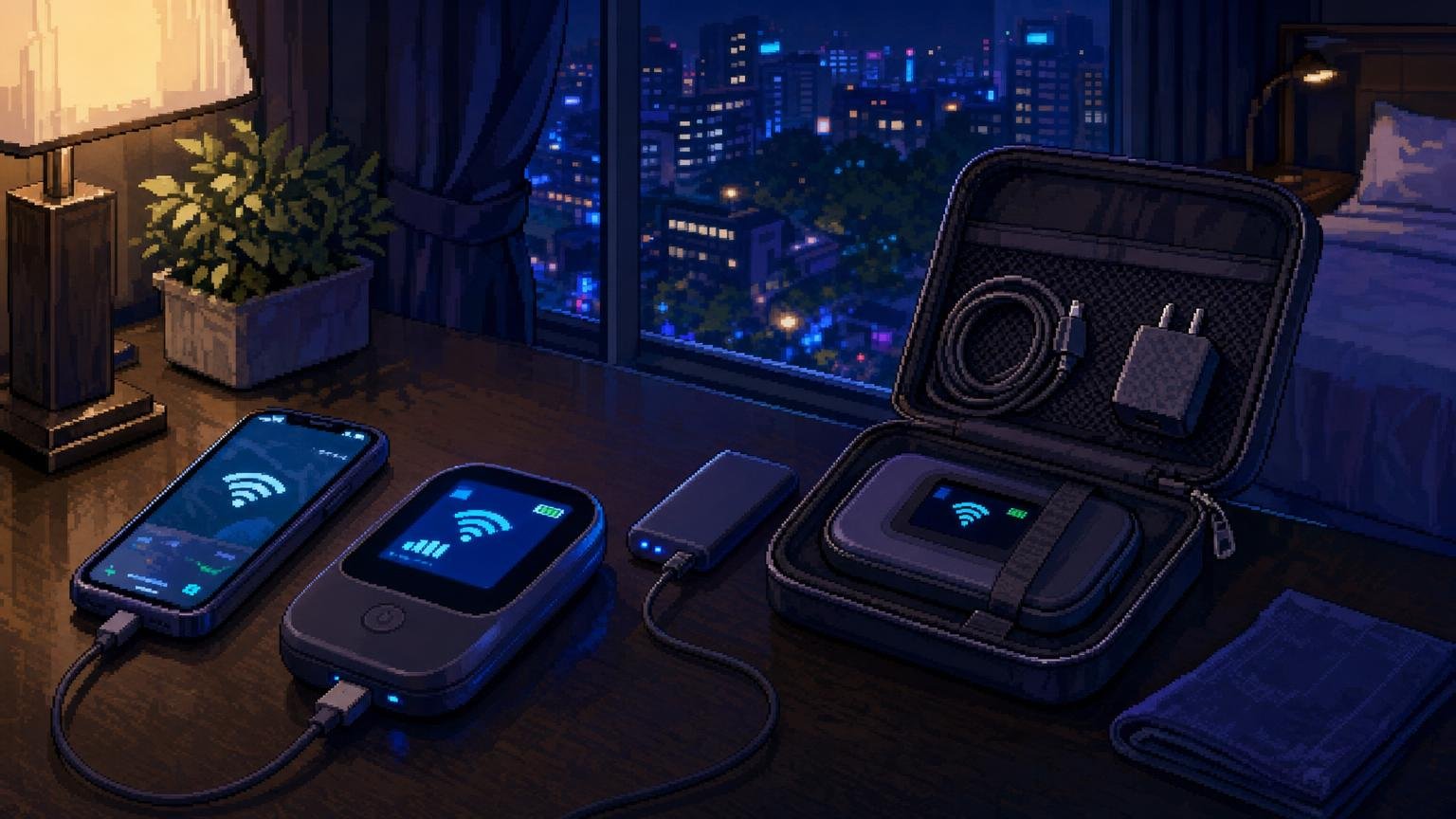
Battery life varies by model, signal strength, connected devices, and usage. Charge it while eating, resting at your accommodation, or using a power bank. Do not wait until the battery warning appears before planning the next charge.
Use mobile data carefully when the router is off
If your home SIM remains active, your phone may switch to expensive international roaming when the Wi-Fi Egg disconnects. Review your home carrier’s roaming settings before departure, especially if you plan to use the phone outside the router’s coverage or after returning the device at the airport.
6. Returning the device
Return the router before your departure according to the provider’s instructions. Airport counters may be located before or after security, so check the exact location and allow time to find the counter. Do not assume that a general telecom booth or a different company’s counter can accept the device.
- Collect every rented item, including the router, charger, cable, adapter, case, and power bank if one was included.
- Visit the correct return counter or approved return box.
- Ask staff to confirm that the rental is closed and any deposit process is complete.
- Keep the receipt, return confirmation, or contract number until the payment is settled.
LG U+ warns that rental fees can continue to accrue until the device is returned. If you lose or damage the router, contact the provider as soon as possible rather than leaving Korea without reporting it. Charges and refund conditions depend on the rental company.
Which travelers should rent a pocket Wi-Fi?
- Good choice for families or groups: One router can provide internet access to several nearby devices, so the group does not need a separate SIM or eSIM for every traveler.
- Good choice for travelers with locked phones: The router does not require you to remove your home SIM.
- Good choice for laptops and tablets: You can connect devices that do not support mobile eSIMs.
- Less convenient for people who split up: Anyone away from the router loses the shared connection.
- Less convenient if you dislike charging devices: You must carry and recharge one more battery-powered item.
Common mistakes and quick fixes
The counter cannot find the reservation
Check the provider name, reservation number, pickup date, airport, and terminal. A booking made through a reseller may have a different confirmation number from the telecom operator’s system.
The card is rejected
Ask whether the provider requires a credit card, accepts a debit card, or requires the cardholder’s name to match the passport. Keep another eligible card available if possible. Do not assume that every foreign card supports the required authorization or deposit.
The router turns on but has no internet
Confirm that the device shows a mobile signal, that Wi-Fi is enabled, and that your phone is connected to the correct network. Restart the router and reconnect. If the problem continues, return to the counter or contact the provider using the support details on the rental agreement.
You are returning from a different airport
Recheck the provider’s approved return locations before your departure day. A different-airport return may be allowed by one operator and unavailable for another.
FAQ
Can a foreigner rent a WiFi Egg in Korea?
Yes. Major Korean telecom operators offer pocket Wi-Fi or Wi-Fi router rentals specifically for foreign visitors. You will normally need a passport and a payment method that meets the provider’s conditions.
Do I need a Korean phone number?
A Korean phone number is not generally presented as a basic requirement for the airport pickup information checked for these rental services. However, the exact reservation and contact process can vary, so use the provider’s current booking page and keep your email confirmation accessible.
Can I rent one without booking?
Some providers allow walk-in rental if stock is available. LG U+ states that visitors can visit its airport customer centers without a prior reservation, but advance booking is recommended. Walk-in service is not guaranteed at every counter or arrival time.
Can two or more people share one device?
That is the main reason many groups choose pocket Wi-Fi. All connected users must remain within the router’s practical Wi-Fi range, and heavy use by one device can affect the shared connection.
Is pocket Wi-Fi better than a SIM or eSIM?
It depends on your group. Pocket Wi-Fi is convenient for several devices and phones that cannot use eSIMs. A SIM or eSIM is usually simpler for solo travelers or groups that often separate because each person keeps their own connection. This article focuses on renting and managing the pocket Wi-Fi device.
What happens if I forget to return it?
Contact the provider immediately. Rental fees may continue until the device is returned, and late-return, loss, or damage charges depend on the company’s terms. Keep the rental contract and device serial information available when contacting support.